> ## Documentation Index
> Fetch the complete documentation index at: https://docs.avoca.ai/llms.txt
> Use this file to discover all available pages before exploring further.
# Dialpad
> Set up your Avoca number in Dialpad (ServiceTitan Phones Pro)
In order for your calls to be routed to Avoca, your team needs to ensure that the fallback number associated with your phone setup is set to Avoca. If your ServiceTitan phone provider is **Phones Pro**, ServiceTitan provides a Dialpad where this configuration happens.
Your Avoca forwarding number is provided by your Customer Success Manager.
## Set Avoca as Your Fallback (Overflow)
In Dialpad, navigate to **Settings → Main Line**.
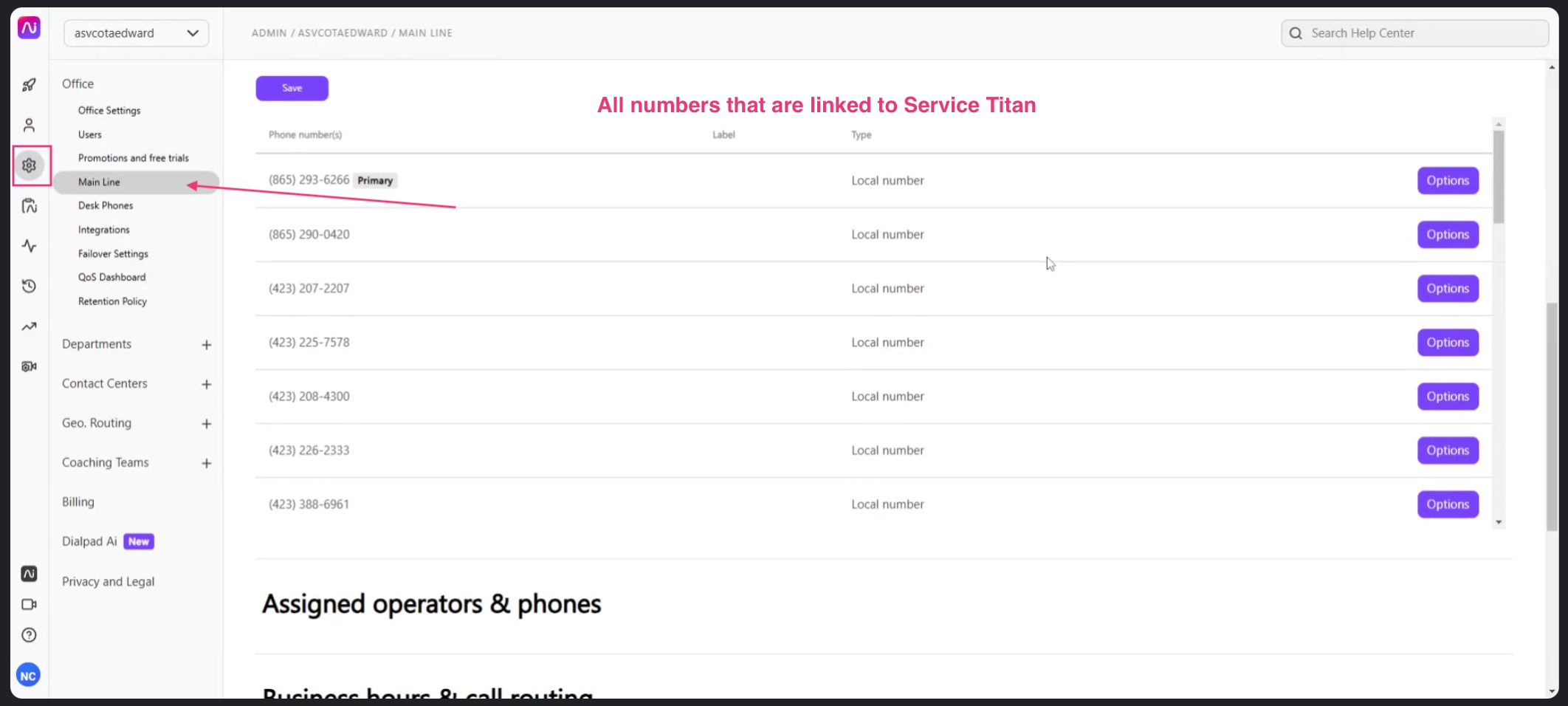 Scroll down to **Call Routing** and click **Edit Call Routing**.
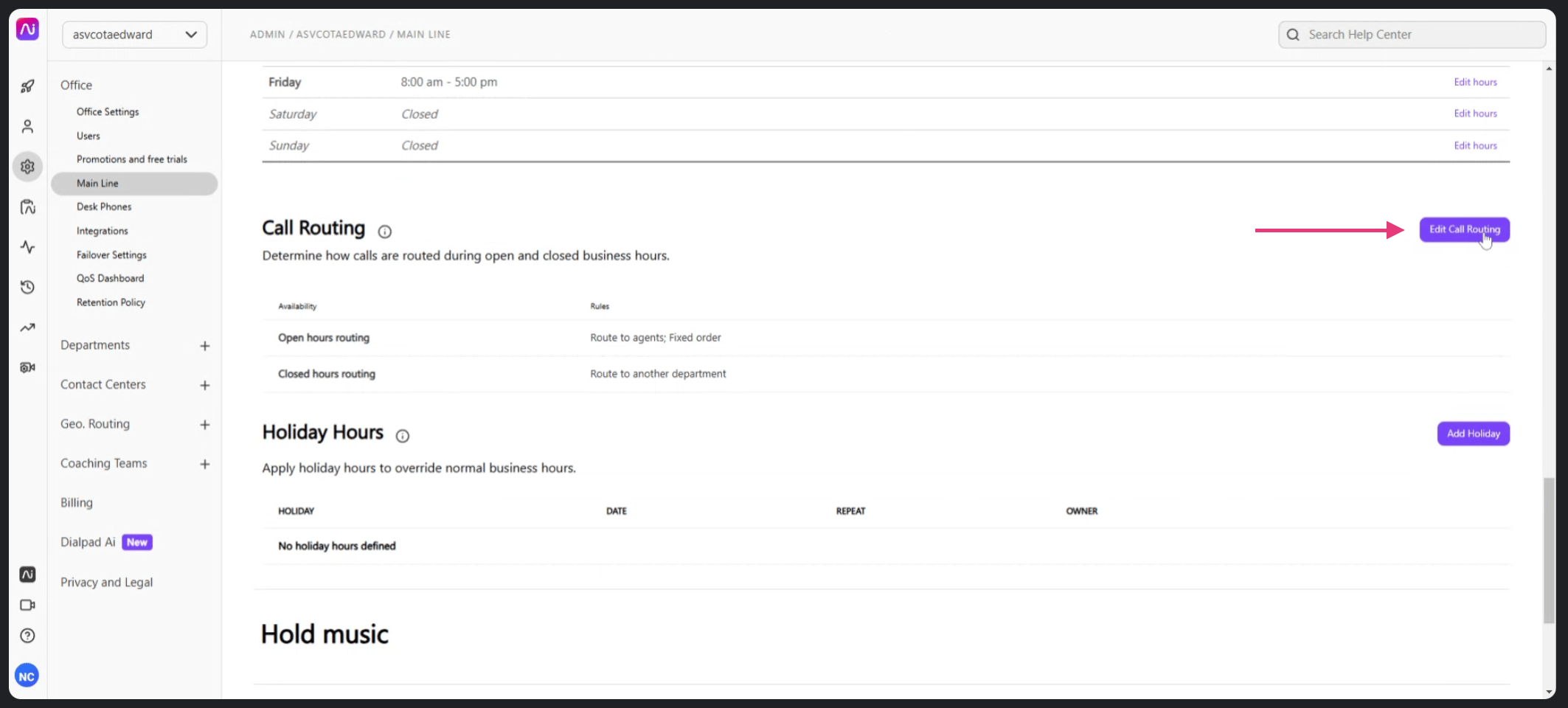 Make sure you're viewing **Open Hours Routing**, then scroll to **Fallback Options**.
If your fallback is set to another internal contact center, set up Avoca call forwarding in the **Contact Center** menu instead of the Main Line — configuring it on the Main Line may cause routing issues. And if you have multiple departments, set up call forwarding within **each** department.
Make sure you're viewing **Open Hours Routing**, then scroll to **Fallback Options**.
If your fallback is set to another internal contact center, set up Avoca call forwarding in the **Contact Center** menu instead of the Main Line — configuring it on the Main Line may cause routing issues. And if you have multiple departments, set up call forwarding within **each** department.
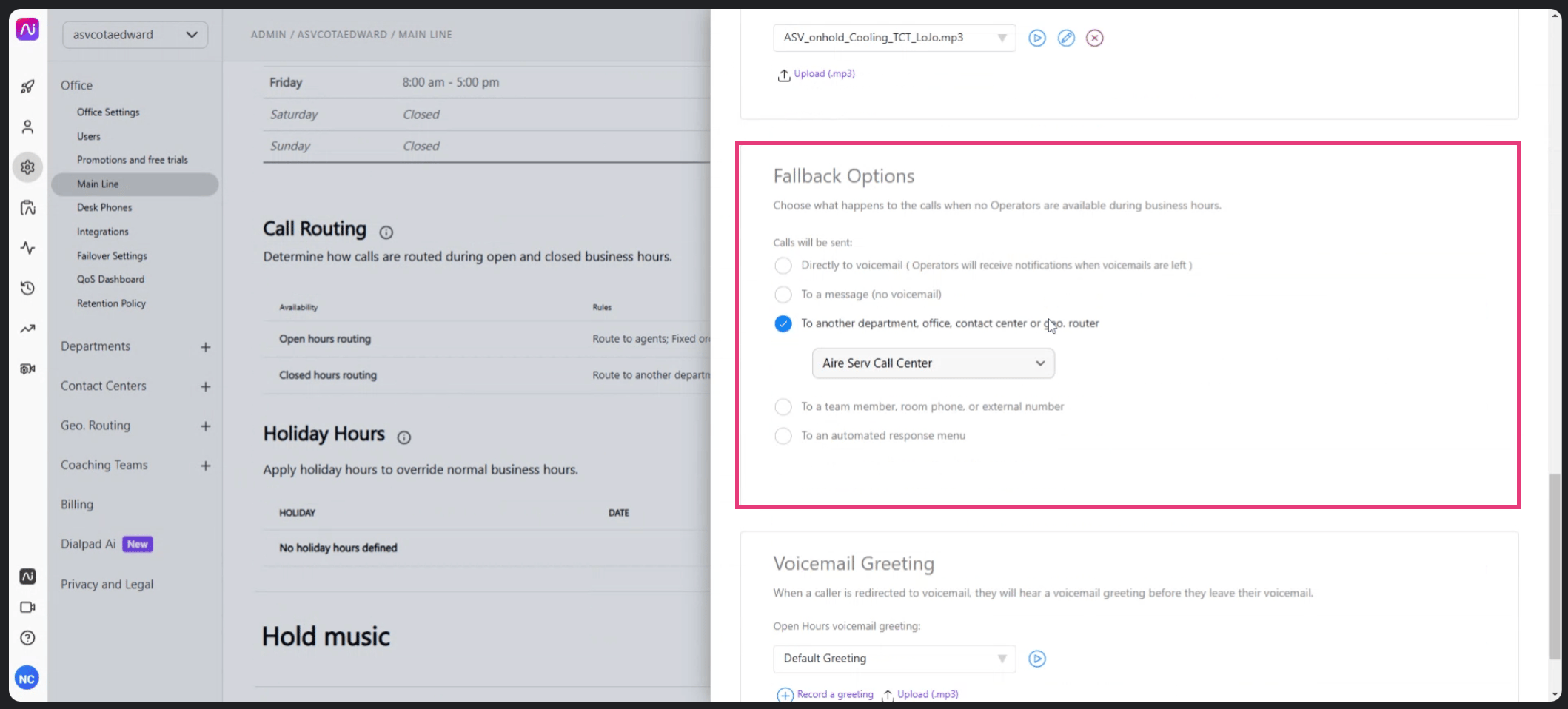 Click **"To a team member, room phone, or external number"** and add your Avoca number. Press Enter.
If you don't see this option enabled, contact [Dialpad Customer Care](https://dialpad.com/contact-support) and they'll help enable it.
Click **"To a team member, room phone, or external number"** and add your Avoca number. Press Enter.
If you don't see this option enabled, contact [Dialpad Customer Care](https://dialpad.com/contact-support) and they'll help enable it.
 ## Set Avoca as Your After-Hours Routing
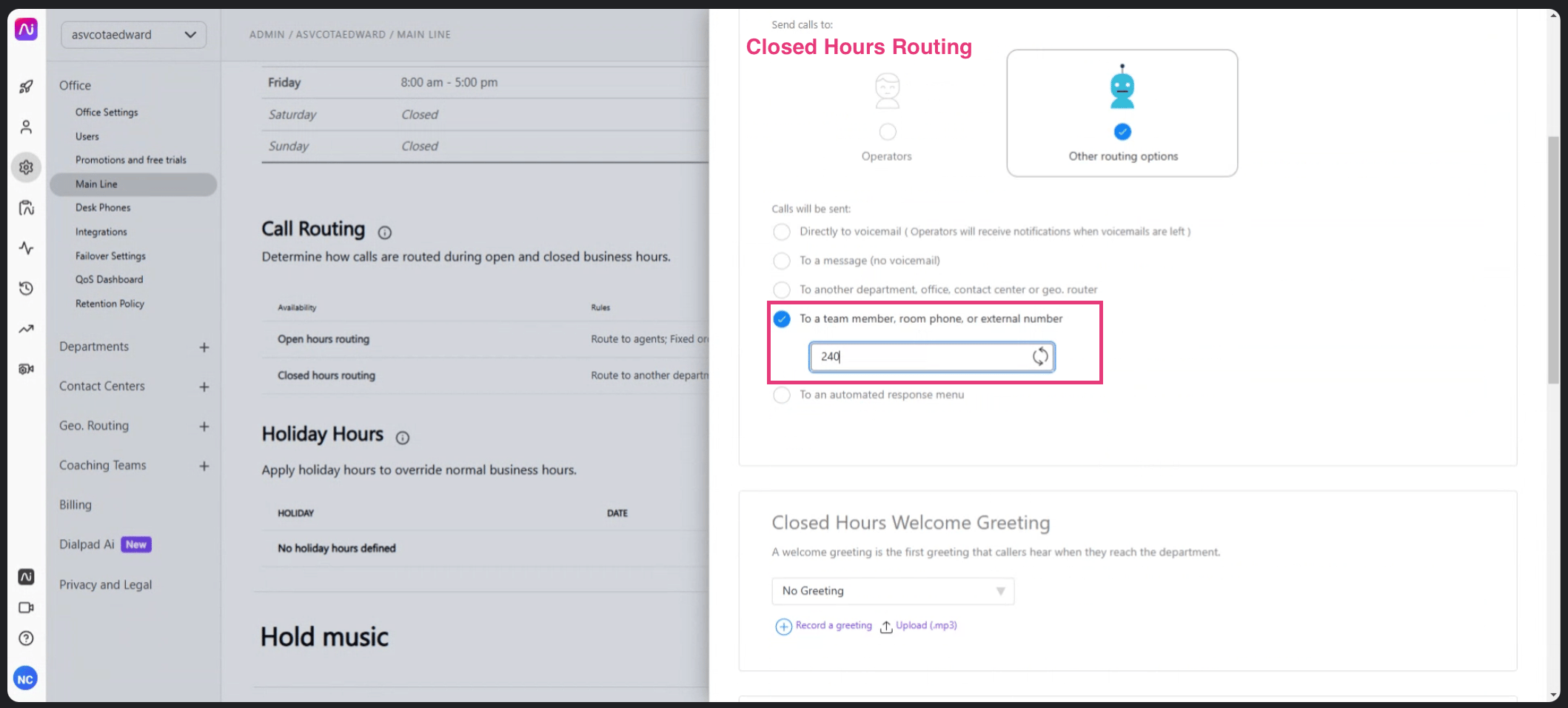
In the same **Edit Call Routing** view, select **Closed Hours Routing** and make sure **Routing Options** is set to **No Operator**.
Click **"To a team member, room phone, or external number"** and add your Avoca number.
## Set Avoca as Your After-Hours Routing
In the same **Edit Call Routing** view, select **Closed Hours Routing** and make sure **Routing Options** is set to **No Operator**.
Click **"To a team member, room phone, or external number"** and add your Avoca number.
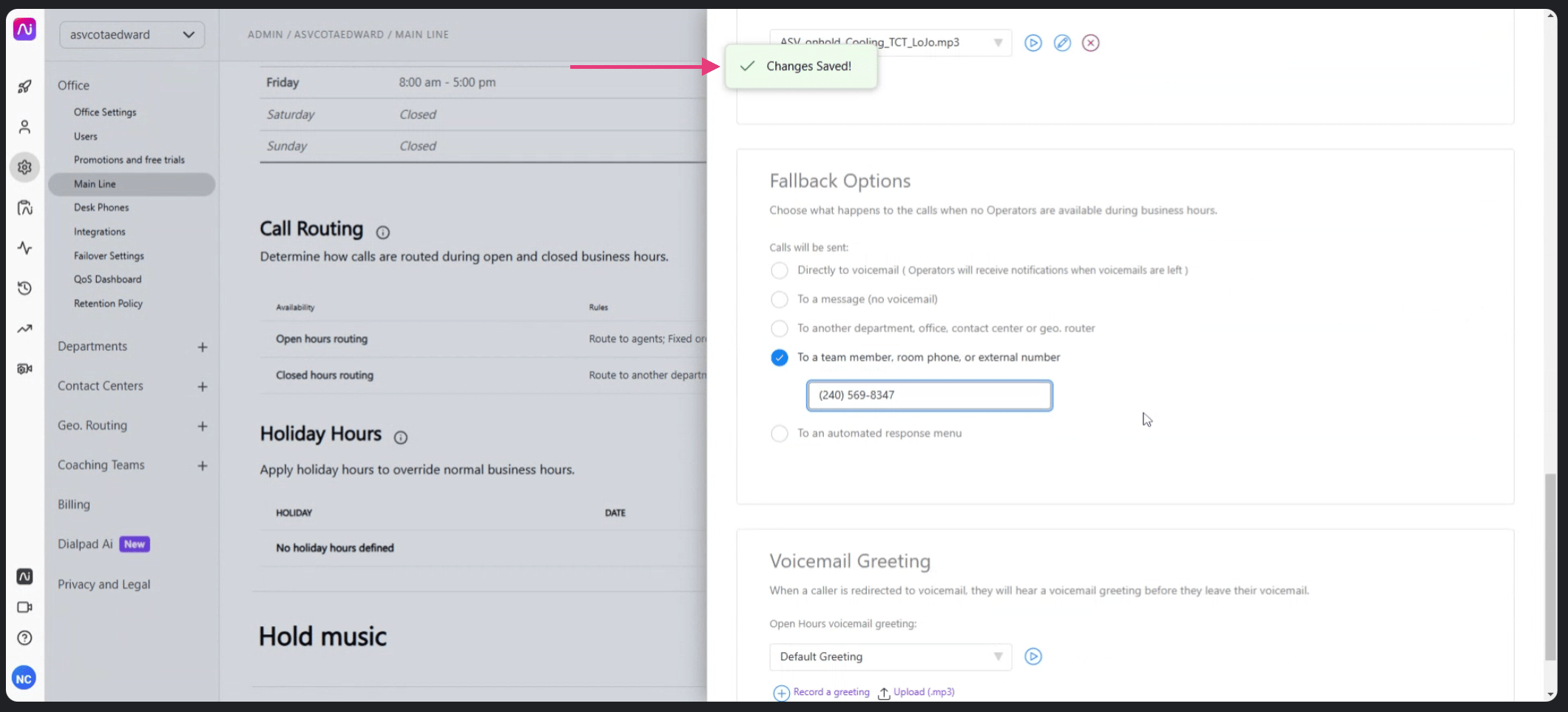
 Make sure you get a **"Changes Saved!"** notification.
 ## Troubleshooting
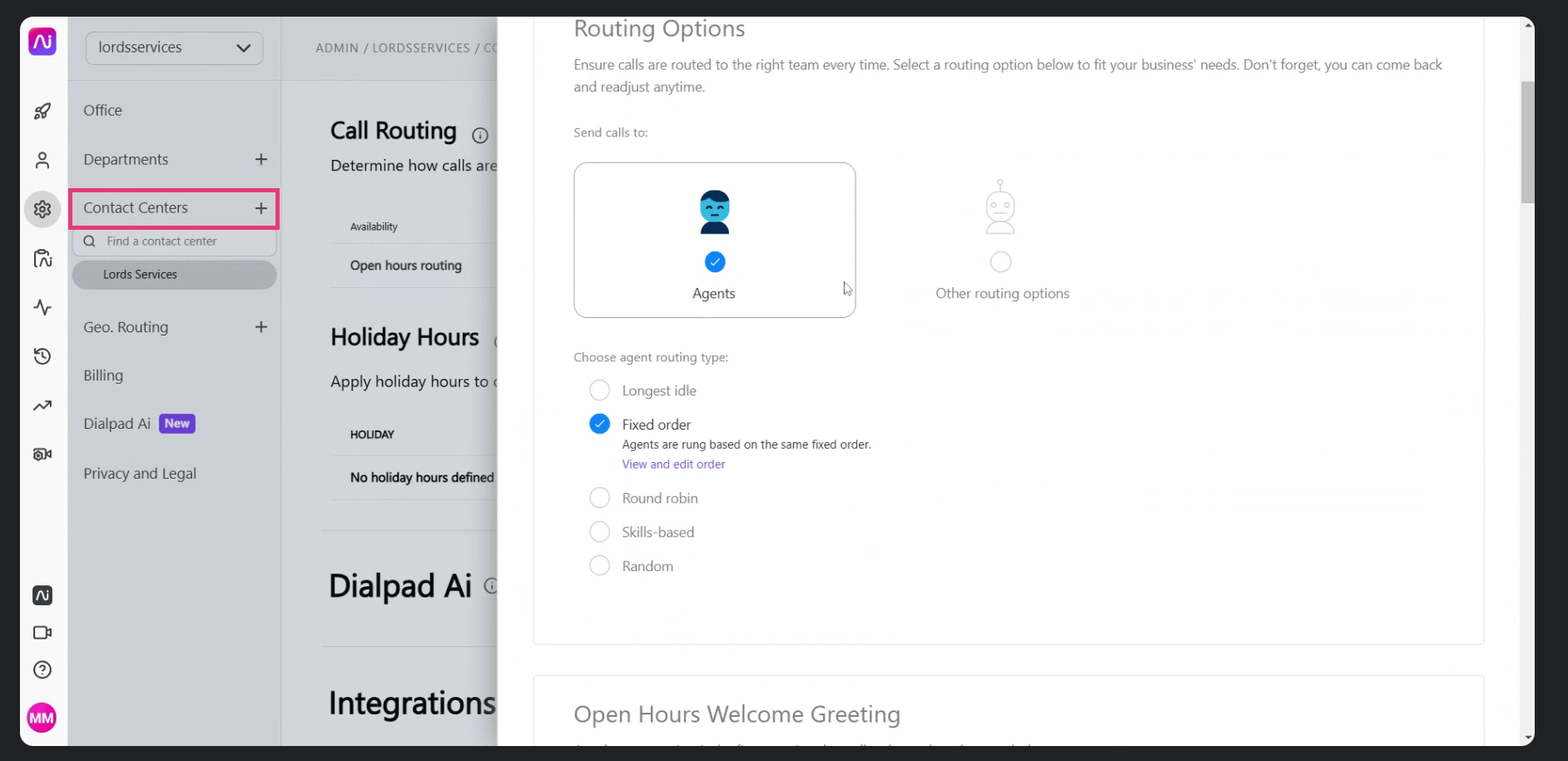
If you don't see **Fallback Options** on the Main Line, your calls may route through a default Contact Center instead:
1. Go to **Settings → Contact Center**.
2. Find the default Contact Center.
3. Apply the same fallback and closed-hours steps inside the Contact Center's routing settings.
## Troubleshooting
If you don't see **Fallback Options** on the Main Line, your calls may route through a default Contact Center instead:
1. Go to **Settings → Contact Center**.
2. Find the default Contact Center.
3. Apply the same fallback and closed-hours steps inside the Contact Center's routing settings.
 ## Removing the "This Is a Recorded Call" Announcement
To prevent the recorded-call announcement from playing when your Avoca number answers, add the Avoca number to Dialpad's recording **exception list**:
**For Departments:**
1. Log in to Dialpad and open your **Admin Settings**.
2. Click **Departments** and choose the department to configure.
3. Open **Advanced Settings** and find **Automatic Call Recording**.
4. Check **"Automatically record calls to this department"**, then click **Edit Exception List**.
5. Add the Avoca number (or its area code) to exclude it from recording and the announcement.
**For Contact Centers:**
1. In **Admin Settings**, click **Contact Centers** and choose the one to configure.
2. Open **Advanced Settings** and find **Automatic Call Recording and Transcription**.
3. Select which call types to record, then click **Edit Exception List** and add the Avoca number.
Calls to or from a number on the exception list are not recorded by Dialpad and the announcement is omitted. Useful for complying with regional call-recording laws — note that Avoca's own call recording and disclosure settings are configured separately in your Avoca account.
## Test Your Routing
Place one test call during business hours (let it ring until it overflows to Avoca) and one after hours (should reach Avoca immediately).
## Removing the "This Is a Recorded Call" Announcement
To prevent the recorded-call announcement from playing when your Avoca number answers, add the Avoca number to Dialpad's recording **exception list**:
**For Departments:**
1. Log in to Dialpad and open your **Admin Settings**.
2. Click **Departments** and choose the department to configure.
3. Open **Advanced Settings** and find **Automatic Call Recording**.
4. Check **"Automatically record calls to this department"**, then click **Edit Exception List**.
5. Add the Avoca number (or its area code) to exclude it from recording and the announcement.
**For Contact Centers:**
1. In **Admin Settings**, click **Contact Centers** and choose the one to configure.
2. Open **Advanced Settings** and find **Automatic Call Recording and Transcription**.
3. Select which call types to record, then click **Edit Exception List** and add the Avoca number.
Calls to or from a number on the exception list are not recorded by Dialpad and the announcement is omitted. Useful for complying with regional call-recording laws — note that Avoca's own call recording and disclosure settings are configured separately in your Avoca account.
## Test Your Routing
Place one test call during business hours (let it ring until it overflows to Avoca) and one after hours (should reach Avoca immediately).