> ## Documentation Index
> Fetch the complete documentation index at: https://docs.avoca.ai/llms.txt
> Use this file to discover all available pages before exploring further.
# Five9
> Forward calls from Five9 to Avoca for after-hours and overflow coverage
Use this setup if your marketing tracking numbers or ServiceTitan tracking numbers ring into **Five9**, and you want Five9 to forward those calls to your Avoca number.
## Before You Start
* Have your **Avoca forwarding number** ready (provided by your Avoca team).
* Decide whether you want **after-hours** forwarding, **overflow / no-answer** forwarding, or **always forward** (Avoca answers first).
In Five9, you route the inbound call to a point in your flow where Five9 places an outbound leg to an **external PSTN number** (your Avoca number) — either as an IVR step or as a fallback rule when a queue is closed, busy, or times out.
## Overflow Setup in the IVR
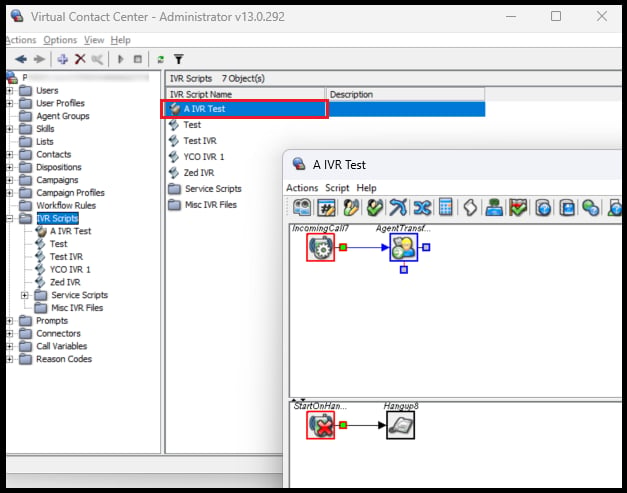
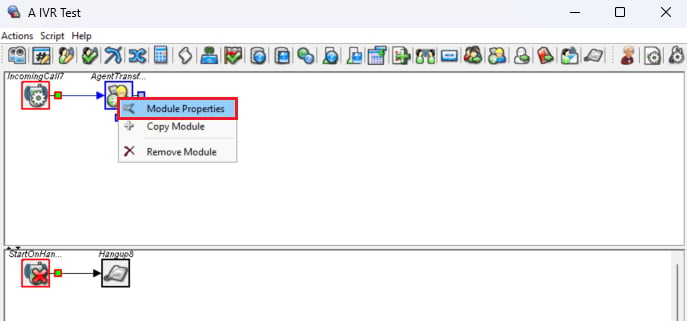
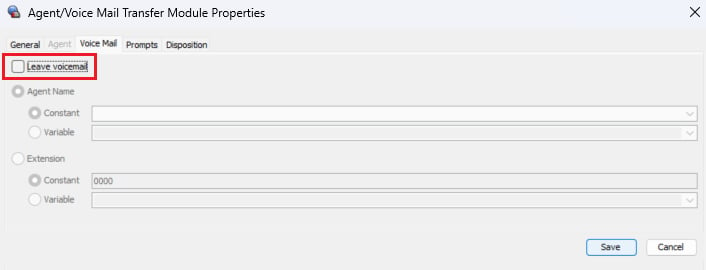
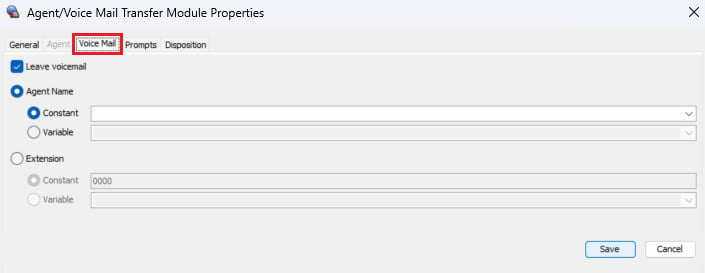 This prevents calls from dropping into voicemail instead of overflowing to Avoca.
 In the **General** tab, set a suitable **Max Queue Time** so the caller stays on the line until the call moves to the next module, and set **Agent Transfer** to the phone number Avoca shared with you.
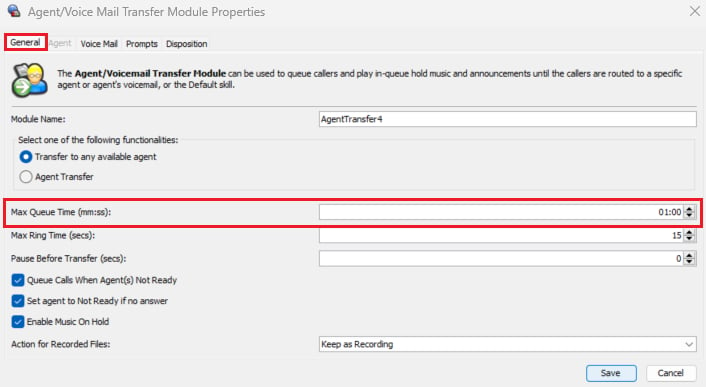 On newer Five9 versions, the Agent Transfer module may not accept an external number. In that case, add a **third-party transfer module** instead — see [Five9's documentation](https://documentation.five9.com/bundle/ivr-admin/page/ivr-admin/modules/third-party-transfer-module.htm).
## Recommended Configurations
* **After-hours forwarding** — when the queue is closed, route to **External Transfer → Avoca number**.
* **Overflow (delay) forwarding** — let agents ring for a set timeout (typically **15–30 seconds**, depending on staffing), then route to **External Transfer → Avoca number**.
* **Busy / max queue depth** — if the queue hits capacity, route to **External Transfer → Avoca number**.
Five9 terminology and menus vary by account configuration. The key requirement is that the call is transferred to an **external phone number** (PSTN), with caller ID preserved if your Five9 policy supports it.
## Test
1. Place a test call during business hours and confirm it behaves as expected (answered by your team, or forwarded after the configured delay).
2. Place a test call after hours (or simulate closed hours) and confirm it forwards immediately to Avoca.
On newer Five9 versions, the Agent Transfer module may not accept an external number. In that case, add a **third-party transfer module** instead — see [Five9's documentation](https://documentation.five9.com/bundle/ivr-admin/page/ivr-admin/modules/third-party-transfer-module.htm).
## Recommended Configurations
* **After-hours forwarding** — when the queue is closed, route to **External Transfer → Avoca number**.
* **Overflow (delay) forwarding** — let agents ring for a set timeout (typically **15–30 seconds**, depending on staffing), then route to **External Transfer → Avoca number**.
* **Busy / max queue depth** — if the queue hits capacity, route to **External Transfer → Avoca number**.
Five9 terminology and menus vary by account configuration. The key requirement is that the call is transferred to an **external phone number** (PSTN), with caller ID preserved if your Five9 policy supports it.
## Test
1. Place a test call during business hours and confirm it behaves as expected (answered by your team, or forwarded after the configured delay).
2. Place a test call after hours (or simulate closed hours) and confirm it forwards immediately to Avoca.