Each business’s 3CX setup is slightly different — if these instructions don’t match what you see, reach out to your Avoca Customer Success Manager or 3CX customer support for assistance.
Setting Up Avoca for After-Hours
Open Call Forwarding → Away
Log into 3CX and navigate to Settings in the left sidebar, then click Call Forwarding and Away.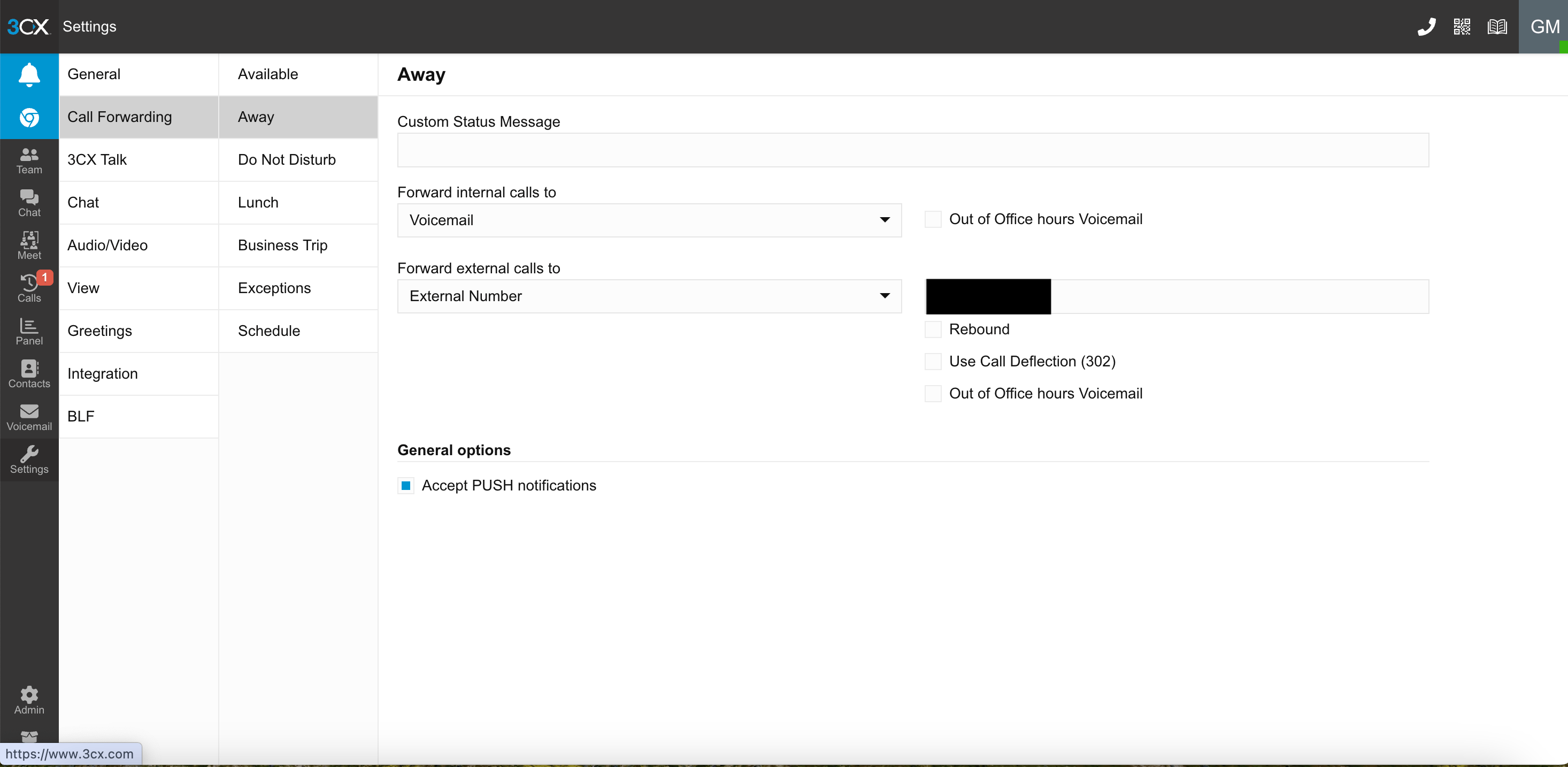
Forward external calls to your Avoca number
Open the “Forward external calls to” menu and select External Number. Enter your Avoca number in the field to the right.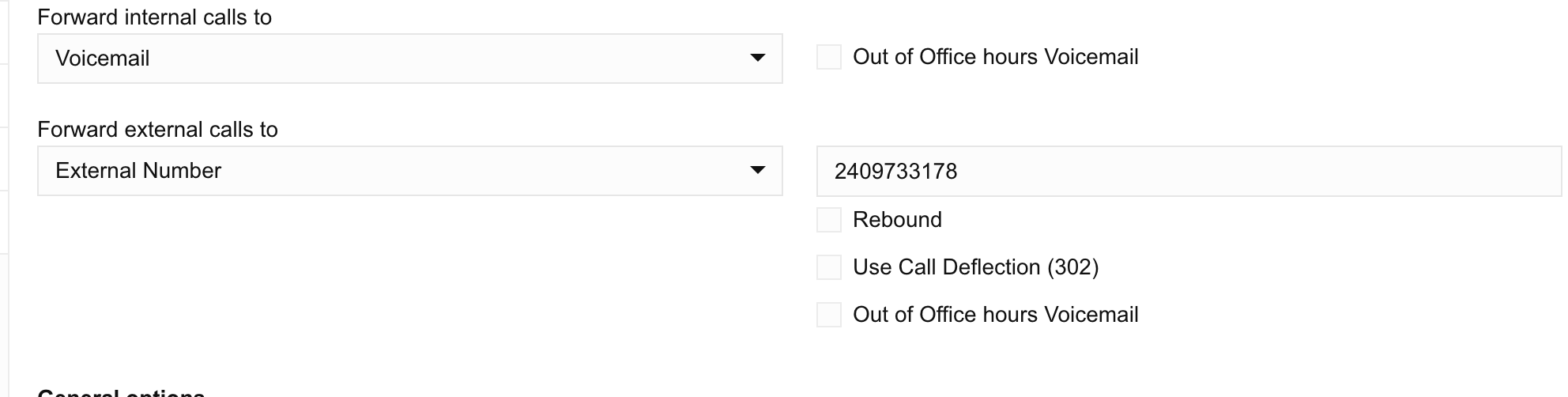
Verify the save
Changes save automatically, but refresh the page and confirm the number is still there.
Repeat for the other away statuses
Repeat step 2 for Do Not Disturb, Lunch, and Business Trip so you’re forwarding to Avoca in all after-hours cases.
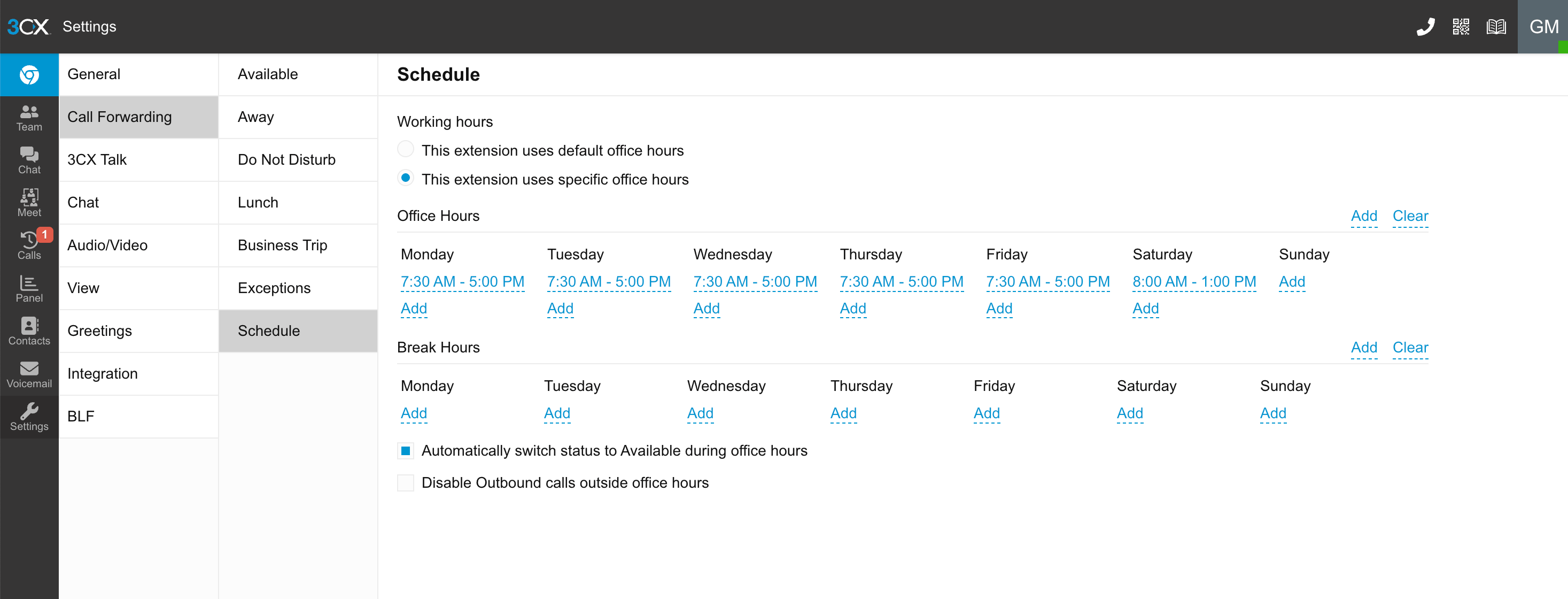
You may also need to configure your global office hours under Settings → Time Zone & Office Hours, depending on your setup.
Setting Up Avoca for Overflow
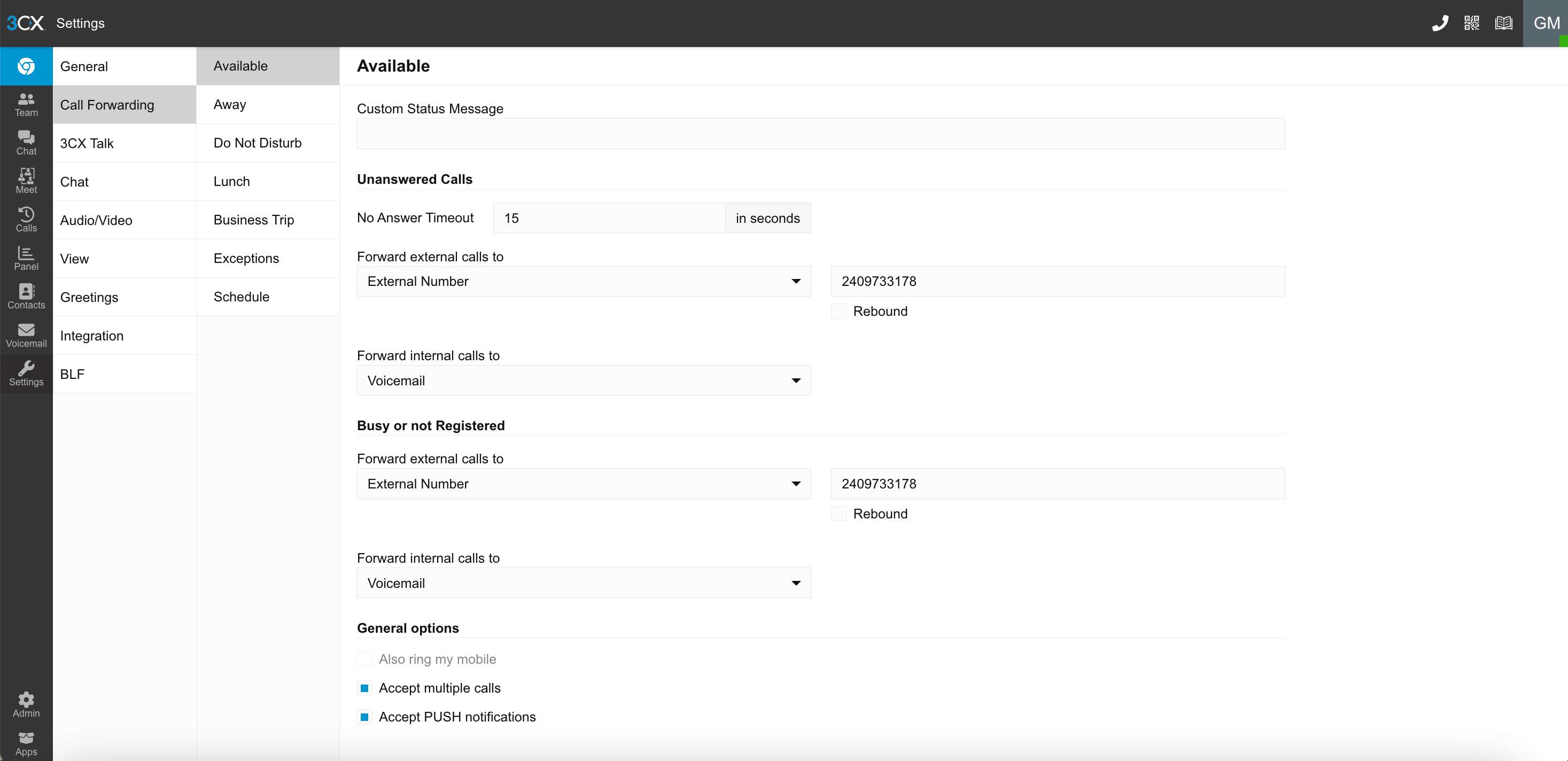
This makes your phones ring first during business hours, then forwards to Avoca if nobody answers.Set the no-answer timeout
Under Unanswered Calls, set the No Answer Timeout. Best practice is typically 15–20 seconds — the window your CSRs have to pick up before overflow goes to Avoca.
Forward unanswered calls to Avoca
Under Unanswered Calls, set “Forward external calls to” → External Number and enter your Avoca number.
Forward busy calls to Avoca
Under Busy or not Registered, set “Forward external calls to” → External Number and enter your Avoca number.