

Before You Start
- Have your Avoca forwarding number ready (provided by your Avoca team).
- Decide whether you want after-hours forwarding, overflow / no-answer forwarding, or always forward (Avoca answers first).
Overflow Setup in the IVR
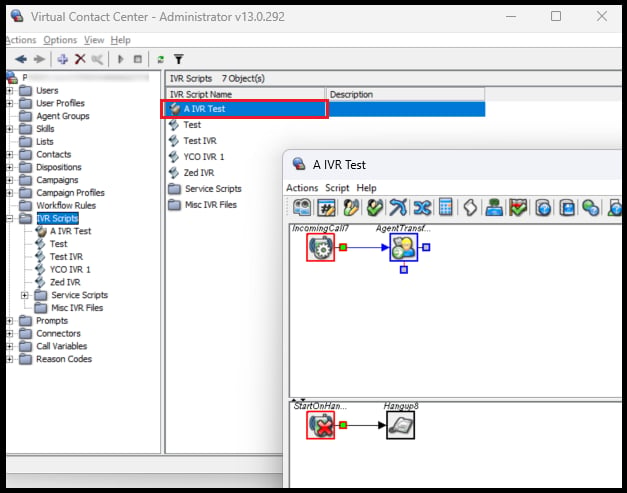
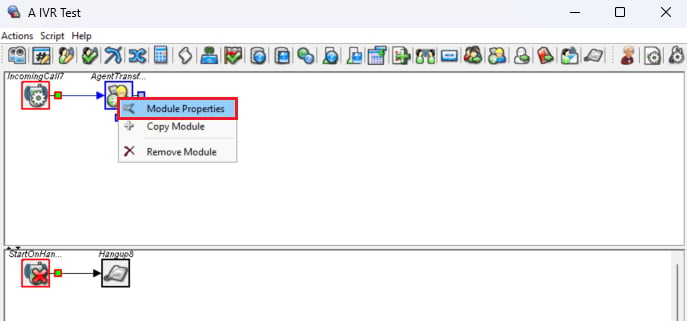
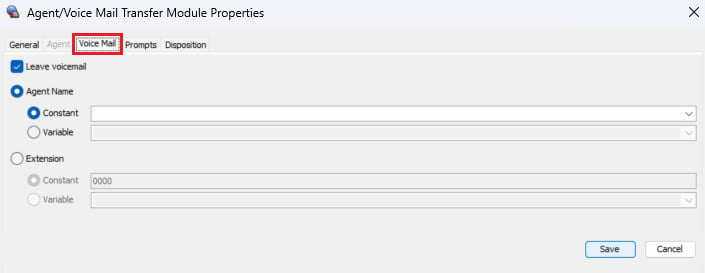
Uncheck 'Leave Voicemail'
This prevents calls from dropping into voicemail instead of overflowing to Avoca.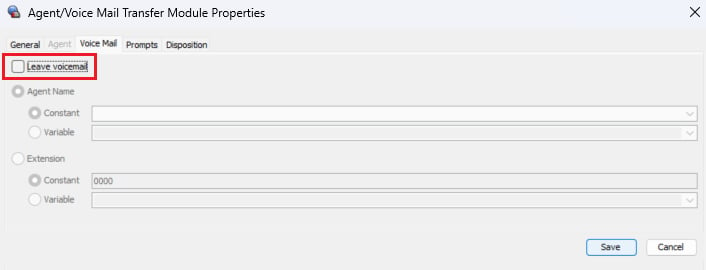
Set Max Queue Time and the transfer number
In the General tab, set a suitable Max Queue Time so the caller stays on the line until the call moves to the next module, and set Agent Transfer to the phone number Avoca shared with you.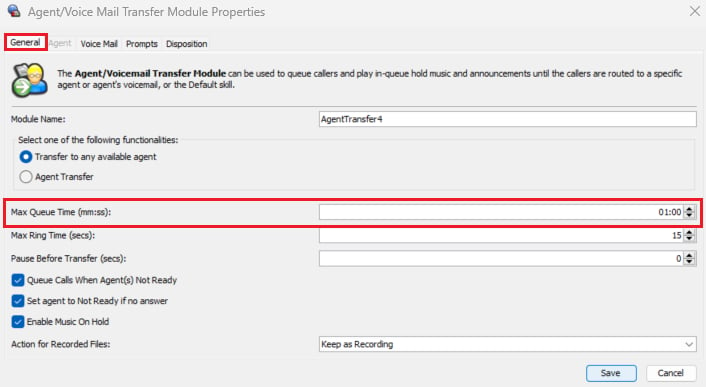
On newer Five9 versions, the Agent Transfer module may not accept an external number. In that case, add a third-party transfer module instead — see Five9’s documentation.
Recommended Configurations
- After-hours forwarding — when the queue is closed, route to External Transfer → Avoca number.
- Overflow (delay) forwarding — let agents ring for a set timeout (typically 15–30 seconds, depending on staffing), then route to External Transfer → Avoca number.
- Busy / max queue depth — if the queue hits capacity, route to External Transfer → Avoca number.
Test
- Place a test call during business hours and confirm it behaves as expected (answered by your team, or forwarded after the configured delay).
- Place a test call after hours (or simulate closed hours) and confirm it forwards immediately to Avoca.